前の記事では、IP アドレス・ポート・DNS(=ドメイン名を IP アドレスに置きかえる、インターネットの電話帳のようなしくみ)のしくみを、自分のパソコンの中で確かめました。今回は、いよいよサーバーにログインします。
VPS を借りたばかりのころは、管理画面に書かれた root のパスワードをコピーして、そのまま ssh で入りがちです。でも、インターネットにつながったサーバーには、世界中から知らない人がパスワードを何度も試しにくることがあります。ログ(=プログラムが残す「いつ、何が起きたか」の記録)にそんな跡が残っているのを見ると、ぞっとしますよね。
この記事では、パスワードではなく鍵でログインするやり方を練習します。本物のサーバーはまだ使わず、自分のパソコンを練習用のサーバーに見立てて、localhost(=自分自身を指す特別な名前)に SSH でログインします。
- SSH が「どこに」「だれとして」ログインするしくみか
- 初めてつなぐときに出る「fingerprint(指紋)」の確認の意味
- サーバー用の SSH 鍵を作り、
ssh-copy-idで登録する方法 -
~/.ssh/authorized_keysの役割 -
~/.ssh/configで、長いコマンドを短くする方法 -
scpでファイルをサーバーに送る方法
-
sudo apt installでソフトを入れられる -
ssh-keygenで鍵を作ったことがある(GitHub の記事) -
~/.sshのパーミッション(700・600)の意味がわかる - IP アドレス・ポート・
localhostの意味がわかる
まだの方は、前の記事「Linuxのネットワークの基本|IPアドレス・ポート・DNSをざっくり理解【初心者向け】」から読むのがおすすめです。
- グループ:ユーザーをまとめたチーム。チーム単位で権限を決められます
- ufw:Debian・Ubuntu で使える、ファイアウォールをかんたんに設定するための道具
- サーバー:ほかのパソコンやアプリにサービスを提供するコンピューター。24時間動かしておくことが多いです
- root:Linux の管理者ユーザー(ユーザー番号 0)。何でもできるので、ふだんの作業では使いません。いちばん上のディレクトリ「
/(ルート)」とは別のものです
用語で迷ったら、連載のまとめ記事の「よく出てくる用語ミニ辞典」でも確かめられます。
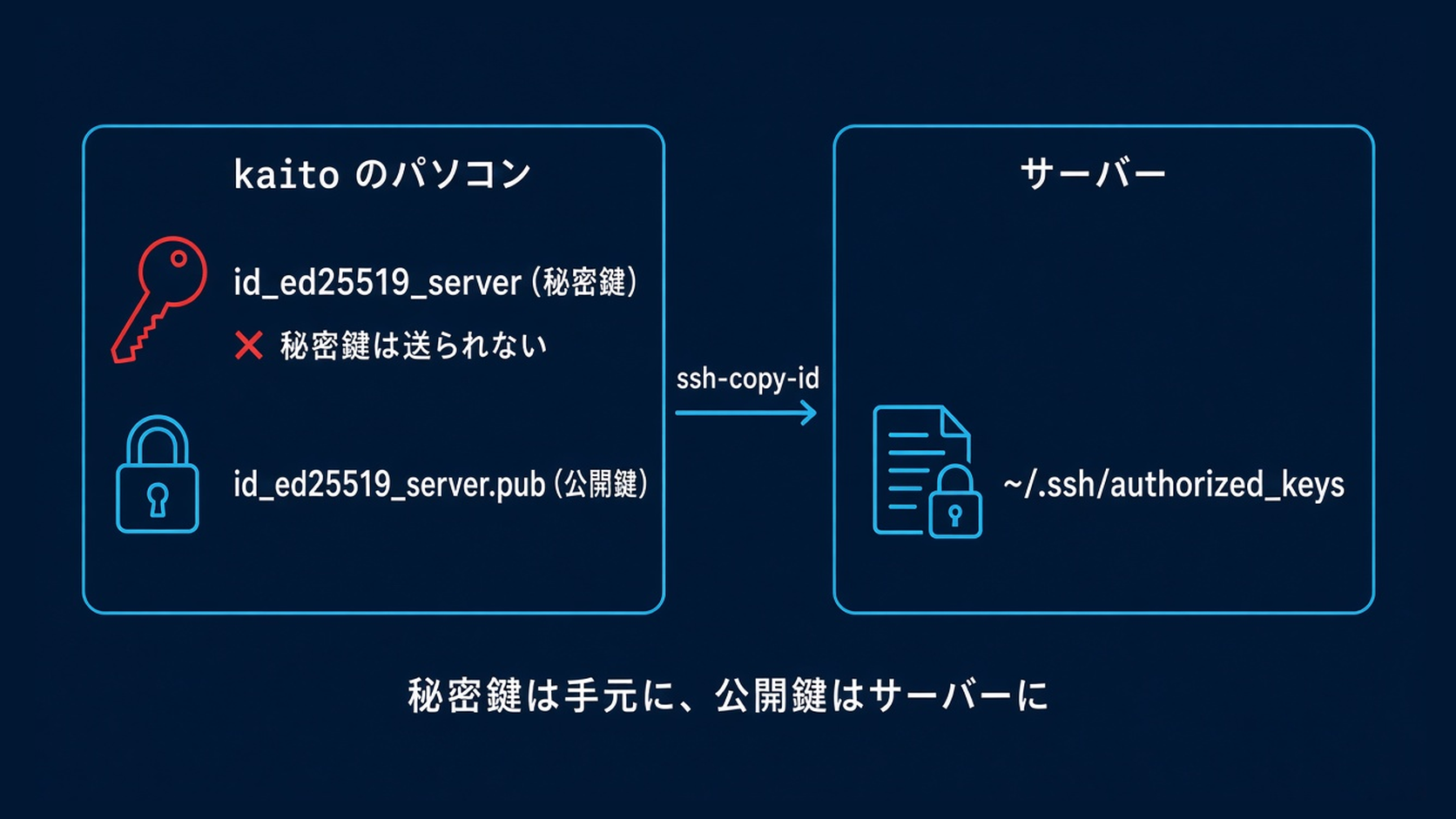
結論:秘密鍵は手元に、公開鍵はサーバーに
| もの | 置き場所 | たとえ |
|---|---|---|
秘密鍵(id_ed25519_server) | 自分のパソコンの ~/.ssh | 自分だけが持つ本物の鍵 |
公開鍵(id_ed25519_server.pub) | サーバーの ~/.ssh/authorized_keys | ドアに取りつける鍵穴 |
ssh-copy-id | 自分のパソコンで実行 | 鍵穴をドアに取りつける作業 |
~/.ssh/config | 自分のパソコンの ~/.ssh | よく行く家の住所録 |
準備:自分のパソコンを練習用のサーバーにする
SSH でログインされる側(サーバー)には、SSH サーバー(openssh-server)が必要です。VPS には最初から入っていますが、自分のパソコンには入っていないことが多いので、練習のために入れます。
- 1
- 2
- 3
sudo apt update
sudo apt install openssh-server
systemctl status ssh --no-pagerここから先の出力例は、Debian 13での実行例です(ユーザー名 kaito・パソコン名 demo のダミー環境)。UbuntuやWSL(=Windows の中で Linux を動かせる、Microsoft のしくみ)では、表示が少し違うことがあります。
(例)
- 1
- 2
- 3
- 4
- 5
- 6
- 7
- 8
- 9
- 10
- 11
- 12
- 13
- 14
- 15
- 16
- 17
- 18
- 19
- 20
- 21
- 22
- 23
- 24
- 25
- 26
- 27
- 28
- 29
- 30
- 31
- 32
- 33
- 34
- 35
- 36
- 37
- 38
- 39
- 40
- 41
- 42
- 43
- 44
- 45
- 46
- 47
- 48
- 49
- 50
- 51
- 52
- 53
- 54
- 55
- 56
- 57
kaito@demo:~$ sudo apt update
[sudo] password for kaito:
Get:1 http://deb.debian.org/debian trixie InRelease [140 kB]
Get:2 http://deb.debian.org/debian trixie-updates InRelease [47.3 kB]
Get:3 http://deb.debian.org/debian-security trixie-security InRelease [43.4 kB]
Fetched 231 kB in 0s (5434 kB/s)
All packages are up to date.
kaito@demo:~$ sudo apt install openssh-server
Installing:
  openssh-server

Installing dependencies:
  libcbor0.10  libwtmpdb0   libxau6    libxext6      openssh-client       ucf
  libfido2-1   libx11-6     libxcb1    libxmuu1      openssh-sftp-server  xauth
  libwrap0     libx11-data  libxdmcp6  ncurses-term  runit-helper

Suggested packages:
  keychain  libpam-ssh  monkeysphere  ssh-askpass  molly-guard  ufw

Summary:
  Upgrading: 0, Installing: 18, Removing: 0, Not Upgrading: 0
  Download size: 1304 kB / 3860 kB
  Space needed: 18.0 MB / 107 GB available

Continue? [Y/n] Y
…(途中省略)…
Setting up openssh-server (1:10.0p1-7+deb13u4) ...
Creating config file /etc/ssh/sshd_config with new version
Creating SSH2 RSA key; this may take some time ...
3072 SHA256:wzo1***********************************8dcE root@demo (RSA)
Creating SSH2 ECDSA key; this may take some time ...
256 SHA256:jDTB***********************************hoOM root@demo (ECDSA)
Creating SSH2 ED25519 key; this may take some time ...
256 SHA256:VN6N***********************************Gjxw root@demo (ED25519)
Creating user 'sshd' (sshd user) with UID 989 and GID 65534.
Created symlink '/etc/systemd/system/sshd.service' → '/usr/lib/systemd/system/ssh.service'.
Created symlink '/etc/systemd/system/multi-user.target.wants/ssh.service' → '/usr/lib/systemd/system/ssh.service'.
ssh.socket is a disabled or a static unit, not starting it.
Created symlink '/etc/systemd/system/ssh.service.wants/sshd-keygen.service' → '/usr/lib/systemd/system/sshd-keygen.service'.
Created symlink '/etc/systemd/system/sshd.service.wants/sshd-keygen.service' → '/usr/lib/systemd/system/sshd-keygen.service'.
Created symlink '/etc/systemd/system/[email protected]/sshd-keygen.service' → '/usr/lib/systemd/system/sshd-keygen.service'.
Created symlink '/etc/systemd/system/ssh.socket.wants/sshd-keygen.service' → '/usr/lib/systemd/system/sshd-keygen.service'.
Processing triggers for man-db (2.13.1-1) ...
Processing triggers for libc-bin (2.41-12+deb13u4) ...
kaito@demo:~$ systemctl status ssh --no-pager
● ssh.service - OpenBSD Secure Shell server
     Loaded: loaded (/usr/lib/systemd/system/ssh.service; enabled; preset: enabled)
     Active: active (running) since Sun 2026-11-01 03:40:29 JST; 2s ago
 Invocation: c7cbc2cf0c3e49369a322896ab9101d0
       Docs: man:sshd(8)
             man:sshd_config(5)
   Main PID: 959 (sshd)
      Tasks: 1 (limit: 19197)
     Memory: 1.3M (peak: 1.9M)
        CPU: 18ms
     CGroup: /system.slice/ssh.service
             └─959 "sshd: /usr/sbin/sshd -D [listener] 0 of 10-100 startups"
検証環境(Debian 13)には、openssh-server は最初は入っていませんでした。ssh コマンドなどが入った openssh-client も入っておらず、一緒に入りました(全部で18個のパッケージ)。途中の Creating SSH2 … key の3行は、このパソコン(サーバー)自身の鍵(ホスト鍵)を作っている表示です。fingerprint(SHA256: のあと)の中央は * で伏せています。
サービス(=systemd が管理する、裏でずっと動いて仕事を受け付けるプログラム)の名前は ssh.service(OpenBSD Secure Shell server)です。Active: active (running) になっていれば、SSH サーバーが動いています。
ポート 22 で待っているかも確かめておきましょう。
- 1
ss -tln | grep ":22"(例)
- 1
- 2
- 3
kaito@demo:~$ ss -tln | grep ":22"
LISTEN 0      128          0.0.0.0:22        0.0.0.0:*
LISTEN 0      128             [::]:22           [::]:*
0.0.0.0:22 と [::]:22 は、前の記事(ネットワークの基本)で見たとおり「外からも受けつける」という意味です。SSH は外から入るためのしくみなので、127.0.0.1 ではなく、こうして外向きに待っています。
openssh-server を入れると、同じ Wi-Fi の機器から、このパソコンにログインを試せるようになります。パスワードが弱い場合は心配なので、練習が終わったら「後片づけ」で止めるか、アンインストールしましょう。
練習用のディレクトリも作っておきます。
- 1
- 2
- 3
- 4
mkdir -p ~/linux-practice/ssh-test
cd ~/linux-practice/ssh-test
echo "サーバーに送るテストのファイルです" > hello.txt
ls
(例)
- 1
- 2
- 3
- 4
- 5
kaito@demo:~$ mkdir -p ~/linux-practice/ssh-test
kaito@demo:~$ cd ~/linux-practice/ssh-test
kaito@demo:~/linux-practice/ssh-test$ echo "サーバーに送るテストのファイルです" > hello.txt
kaito@demo:~/linux-practice/ssh-test$ ls
hello.txt
STEP 1:まずはパスワードでログインしてみる
SSH の基本の形は ssh ユーザー名@住所 です。今回は住所が自分自身(localhost)です。
- 1
ssh kaito@localhost初めてつなぐ相手には、次のような確認が出ます。
(例)
- 1
- 2
- 3
- 4
- 5
- 6
- 7
- 8
- 9
- 10
- 11
- 12
- 13
- 14
- 15
kaito@demo:~/linux-practice/ssh-test$ ssh kaito@localhost
The authenticity of host 'localhost (::1)' can't be established.
ED25519 key fingerprint is SHA256:VN6N***********************************Gjxw.
This key is not known by any other names.
Are you sure you want to continue connecting (yes/no/[fingerprint])? yes
Warning: Permanently added 'localhost' (ED25519) to the list of known hosts.
kaito@localhost's password:
Linux demo 6.12.94+ #1 SMP PREEMPT_DYNAMIC Mon Oct 26 15:07:58 UTC 2026 x86_64

The programs included with the Debian GNU/Linux system are free software;
the exact distribution terms for each program are described in the
individual files in /usr/share/doc/*/copyright.

Debian GNU/Linux comes with ABSOLUTELY NO WARRANTY, to the extent
permitted by applicable law.
localhost (::1) の ::1 は、IPv6 での「自分自身」です(IPv4 の 127.0.0.1 と同じ意味)。fingerprint の中央は * で伏せています。kaito@localhost's password: でパスワードを入力すると、Linux demo … から始まるあいさつが表示されて、ログインできました。

これは「この相手に初めてつなぎますが、本物ですか?」という確認です。yes と入力すると、相手の指紋が ~/.ssh/known_hosts に記録され、次回からは聞かれなくなります。そのあと、kaito のパスワードを入力します(画面には表示されません)。
ログインできたら、次のように確かめてから抜けます。
- 1
- 2
- 3
whoami
echo $SSH_CONNECTION
exit
(例)
- 1
- 2
- 3
- 4
- 5
- 6
- 7
kaito@demo:~$ whoami
kaito
kaito@demo:~$ echo $SSH_CONNECTION
::1 47324 ::1 22
kaito@demo:~$ exit
logout
Connection to localhost closed.
今回はサーバーが自分自身なので、ログインしたあともプロンプトは kaito@demo のままです。$SSH_CONNECTION は「つないできた側の住所・ポート、つながれた側の住所・ポート」の順で、最後の 22 が SSH の部屋番号です。
VPS の管理画面に、サーバーの指紋(fingerprint)が書かれていることがあります。初めてつなぐときは、表示された指紋と見比べてから yes を入力すると安心です。2回目以降に「WARNING: REMOTE HOST IDENTIFICATION HAS CHANGED!」と出たときは、相手が入れ替わった可能性があるので、そのまま進めずに理由を調べましょう(サーバーを作り直した場合などにも出ます)。
STEP 2:サーバー用の SSH 鍵を作る
GitHub 用の鍵とは別に、サーバー用の鍵を作ります。用途ごとに鍵を分けておくと、あとで1つだけ使えなくする(消す)のがかんたんです。
- 1
ssh-keygen -t ed25519 -f ~/.ssh/id_ed25519_server -C "kaito-server@demo"(例)
- 1
- 2
- 3
- 4
- 5
- 6
- 7
- 8
- 9
- 10
- 11
- 12
- 13
- 14
- 15
- 16
- 17
- 18
- 19
- 20
kaito@demo:~/linux-practice/ssh-test$ ssh-keygen -t ed25519 -f ~/.ssh/id_ed25519_server -C "kaito-server@demo"
Generating public/private ed25519 key pair.
Enter passphrase for "/home/kaito/.ssh/id_ed25519_server" (empty for no passphrase):
Enter same passphrase again:
Your identification has been saved in /home/kaito/.ssh/id_ed25519_server
Your public key has been saved in /home/kaito/.ssh/id_ed25519_server.pub
The key fingerprint is:
SHA256:AdWF***********************************S0C8 kaito-server@demo
The key's randomart image is:
+--[ED25519 256]--+
|*****************|
|*****************|
|*****************|
|*****************|
|*****************|
|*****************|
|*****************|
|*****************|
|*****************|
+----[SHA256]-----+
パスフレーズは画面に表示されません。新しい OpenSSH(Debian 13 は OpenSSH 10)では、質問が Enter passphrase for "/home/kaito/.ssh/id_ed25519_server" (empty for no passphrase): のように、ファイル名入りになっています。fingerprint の中央と randomart(鍵の模様)は * で伏せています。
パスフレーズは、秘密鍵そのものにかける合言葉です。鍵ファイルが盗まれたときの守りになるので、つけておくのがおすすめです。
- 1
ls -l ~/.ssh/id_ed25519_server*(例)
- 1
- 2
- 3
kaito@demo:~/linux-practice/ssh-test$ ls -l ~/.ssh/id_ed25519_server*
-rw------- 1 kaito kaito 464 Nov  1 03:40 /home/kaito/.ssh/id_ed25519_server
-rw-r--r-- 1 kaito kaito  99 Nov  1 03:40 /home/kaito/.ssh/id_ed25519_server.pub
STEP 3:公開鍵をサーバーに登録する(ssh-copy-id)
ssh-copy-id は、公開鍵をサーバーの ~/.ssh/authorized_keys に書き足してくれるコマンドです。-i で、どの公開鍵を送るかを指定します。
- 1
ssh-copy-id -i ~/.ssh/id_ed25519_server.pub kaito@localhost(例)
- 1
- 2
- 3
- 4
- 5
- 6
- 7
- 8
- 9
- 10
kaito@demo:~/linux-practice/ssh-test$ ssh-copy-id -i ~/.ssh/id_ed25519_server.pub kaito@localhost
/usr/bin/ssh-copy-id: INFO: Source of key(s) to be installed: "/home/kaito/.ssh/id_ed25519_server.pub"
/usr/bin/ssh-copy-id: INFO: attempting to log in with the new key(s), to filter out any that are already installed
/usr/bin/ssh-copy-id: INFO: 1 key(s) remain to be installed -- if you are prompted now it is to install the new keys
kaito@localhost's password:

Number of key(s) added: 1

Now try logging into the machine, with: "ssh -i /home/kaito/.ssh/id_ed25519_server 'kaito@localhost'"
and check to make sure that only the key(s) you wanted were added.
途中の kaito@localhost's password: で、kaito のパスワードを入力しています。
サーバー側(今回は同じパソコン)の authorized_keys を見てみましょう。
- 1
- 2
ls -l ~/.ssh/authorized_keys
cut -c 1-30 ~/.ssh/authorized_keys
(例)
- 1
- 2
- 3
- 4
kaito@demo:~/linux-practice/ssh-test$ ls -l ~/.ssh/authorized_keys
-rw------- 1 kaito kaito 99 Nov  1 03:40 /home/kaito/.ssh/authorized_keys
kaito@demo:~/linux-practice/ssh-test$ cut -c 1-30 ~/.ssh/authorized_keys
ssh-ed25519 AAAAC3NzaC1lZDI1NT
ssh-ed25519 AAAAC3NzaC1lZDI1NT までは、ed25519 の鍵ならだれでも同じ書き出しです。そのあとの鍵の本体は、表示していません。
authorized_keys は「このドアに合う鍵穴の一覧」です。1行が1本の鍵に当たります。
STEP 4:鍵でログインする
-i で秘密鍵を指定して、ログインします。
- 1
ssh -i ~/.ssh/id_ed25519_server kaito@localhost(例)
- 1
- 2
- 3
- 4
- 5
- 6
- 7
- 8
- 9
- 10
- 11
kaito@demo:~/linux-practice/ssh-test$ ssh -i ~/.ssh/id_ed25519_server kaito@localhost
Enter passphrase for key '/home/kaito/.ssh/id_ed25519_server':
Linux demo 6.12.94+ #1 SMP PREEMPT_DYNAMIC Mon Oct 26 15:07:58 UTC 2026 x86_64

The programs included with the Debian GNU/Linux system are free software;
the exact distribution terms for each program are described in the
individual files in /usr/share/doc/*/copyright.

Debian GNU/Linux comes with ABSOLUTELY NO WARRANTY, to the extent
permitted by applicable law.
Last login: Sun Nov  1 03:40:42 2026 from ::1
kaito のパスワードではなく、Enter passphrase for key '/home/kaito/.ssh/id_ed25519_server': と鍵のパスフレーズを聞かれました。デスクトップのパソコンでは、パスフレーズを聞く小さな画面が開くこともあります。
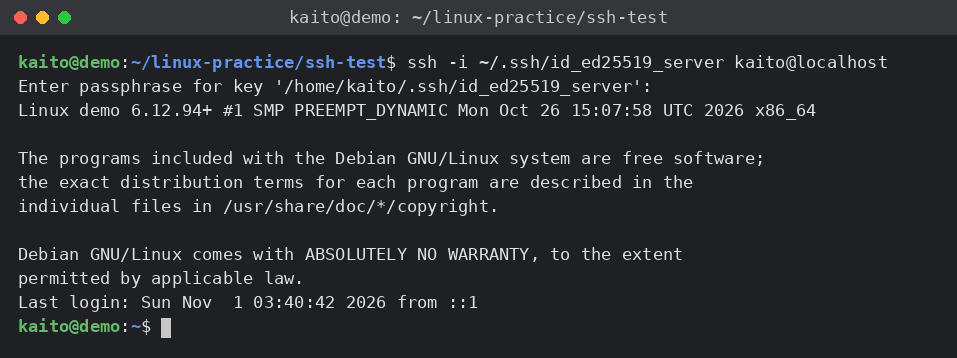
聞かれたのが「kaito のパスワード」ではなく「鍵のパスフレーズ」になっていれば、鍵でログインできています。exit で抜けましょう。
- 1
exit鍵を登録したのに、パスワードを聞かれる・「Permission denied (publickey)」で入れない、というときは、次の順に確かめます。
- ユーザー名と鍵が合っているか:
ssh -i 秘密鍵 ユーザー名@住所の、ユーザー名と-iの鍵のファイル名を見直します。-iには、.pubがついていないほう(秘密鍵)を指定します。 - サーバー側のパーミッション:SSH サーバーは、
~/.sshやその中のファイルをほかの人が書きかえられる状態だと、安全のために鍵を使わせません。サーバー側で、~/.sshは700(drwx------)、authorized_keysは600(-rw-------)にしておきます(chmod 700 ~/.ssh、chmod 600 ~/.ssh/authorized_keys)。ホームディレクトリ(=ユーザーごとに用意された自分専用のディレクトリ)そのものを、グループやほかの人が書きこめる状態にしている場合も、同じ理由で鍵が使えないことがあります(SSH サーバーの設定など、環境により異なります)。 - くわしい表示を見る:
ssh -v -i 秘密鍵 ユーザー名@住所のように-vをつけると、どの鍵を試して、サーバーがどう答えたかが表示されます。下の「AIに聞こう」のテンプレートに貼るときは、IP アドレスなどを伏せましょう。
パーミッションの数字の意味は、Lv2 の chmod の記事で説明しています。
STEP 5:~/.ssh/config で短く打てるようにする
毎回 -i やユーザー名を打つのは大変です。~/.ssh/config に「住所録」を書いておくと、短い名前でつなげます。
- 1
nano ~/.ssh/configファイルの最後に、次の4行を書き足して保存します。
- 1
- 2
- 3
- 4
Host practice-server
    HostName localhost
    User kaito
IdentityFile ~/.ssh/id_ed25519_server- 1
- 2
chmod 600 ~/.ssh/config
ssh practice-server
(例)
- 1
- 2
- 3
- 4
- 5
- 6
- 7
- 8
- 9
- 10
- 11
- 12
- 13
- 14
- 15
kaito@demo:~/linux-practice/ssh-test$ chmod 600 ~/.ssh/config
kaito@demo:~/linux-practice/ssh-test$ ssh practice-server
Enter passphrase for key '/home/kaito/.ssh/id_ed25519_server':
Linux demo 6.12.94+ #1 SMP PREEMPT_DYNAMIC Mon Oct 26 15:07:58 UTC 2026 x86_64

The programs included with the Debian GNU/Linux system are free software;
the exact distribution terms for each program are described in the
individual files in /usr/share/doc/*/copyright.

Debian GNU/Linux comes with ABSOLUTELY NO WARRANTY, to the extent
permitted by applicable law.
Last login: Sun Nov  1 03:40:59 2026 from ::1
kaito@demo:~$ exit
logout
Connection to localhost closed.
本物の VPS なら、HostName に 203.0.113.10 のようなグローバル IP を書きます。Host の名前は自分で決めてかまいません。
STEP 6:scp でファイルをサーバーに送る
scp は、SSH の通り道を使ってファイルをコピーするコマンドです。~/.ssh/config の名前も使えます。
- 1
- 2
- 3
- 4
cd ~/linux-practice/ssh-test
scp hello.txt practice-server:linux-practice/ssh-test/copied.txt
ls
cat copied.txt
(例)
- 1
- 2
- 3
- 4
- 5
- 6
- 7
- 8
kaito@demo:~/linux-practice/ssh-test$ cd ~/linux-practice/ssh-test
kaito@demo:~/linux-practice/ssh-test$ scp hello.txt practice-server:linux-practice/ssh-test/copied.txt
Enter passphrase for key '/home/kaito/.ssh/id_ed25519_server':
hello.txt                                                         100%   52   105.0KB/s   00:00
kaito@demo:~/linux-practice/ssh-test$ ls
copied.txt  hello.txt
kaito@demo:~/linux-practice/ssh-test$ cat copied.txt
サーバーに送るテストのファイルです
scp でも、鍵のパスフレーズを聞かれます。100% と 52(バイト)は、ファイルを全部送れたという意味です。
practice-server: のあとのパスは、ログインしたときのホームディレクトリから数えた場所です。今回はサーバーが自分自身なので、同じフォルダに copied.txt ができました。
サーバーに送るのは公開鍵(.pub)だけです。秘密鍵(.pub がついていないほう)を scp でサーバーに送ったり、チャットやメール、AI に貼ったりしてはいけません。秘密鍵を持っている人は、あなたとしてサーバーに入れてしまいます。もし漏れたかもしれないときは、サーバーの authorized_keys からその鍵の行を消し、鍵を作り直してください。
パスワードでのログインを止める設定や、root でのログインを禁止する設定は、サーバー側の /etc/ssh/sshd_config を書きかえて行います。順番を間違えると、自分もログインできなくなる(締め出される)おそれがあるので、この記事では試しません。安全な順番は、次の VPS 初期設定の記事で、文章で説明します。
🤖 詰まったらAIに聞こう:SSH でログインできない
- 1
- 2
- 3
- 4
- 5
- 6
- 7
- 8
Linuxの初心者です。SSHでサーバーにログインできません。
原因の候補と、確かめる順番を教えてください。
ssh -v をつけたときの表示の読み方も教えてください。

【つなぐ先】例:VPS(IPアドレスは203.0.113.10に置き換え済み)のポート22
【使ったコマンド】例:ssh -i ~/.ssh/id_ed25519_server kaito@203.0.113.10
【エラーの表示】例:Permission denied (publickey) / Connection timed out など
【~/.ssh の中身】ls -l ~/.ssh の結果(ファイル名とパーミッションだけ)秘密鍵の中身、パスワード、パスフレーズは絶対に貼らないでください。ssh -v の表示には、サーバーの IP アドレスやユーザー名、鍵の fingerprint が含まれます。IP アドレスはダミーに、ユーザー名は「kaito」などに置き換えてから貼りましょう。
後片づけ
練習用に登録した鍵と設定を消し、SSH サーバーを止めます。
まず、authorized_keys から今回の鍵の行を消します。nano ~/.ssh/authorized_keys で開き、最後が kaito-server@demo になっている行を消して保存します(このファイルがもともとなかった場合は、ファイルごと消してかまいません)。~/.ssh/config も同じように開き、Host practice-server から始まる4行を消して保存します。
- 1
- 2
- 3
- 4
- 5
- 6
- 7
nano ~/.ssh/authorized_keys
nano ~/.ssh/config
rm ~/.ssh/id_ed25519_server ~/.ssh/id_ed25519_server.pub
grep -c "kaito-server@demo" ~/.ssh/authorized_keys
cd ~/linux-practice
rm -r ssh-test
ls
(例)
- 1
- 2
- 3
- 4
- 5
- 6
- 7
kaito@demo:~/linux-practice/ssh-test$ rm ~/.ssh/id_ed25519_server ~/.ssh/id_ed25519_server.pub
kaito@demo:~/linux-practice/ssh-test$ grep -c "kaito-server@demo" ~/.ssh/authorized_keys
0
kaito@demo:~/linux-practice/ssh-test$ cd ~/linux-practice
kaito@demo:~/linux-practice$ rm -r ssh-test
kaito@demo:~/linux-practice$ ls
archive-test chmod-test edit-test find-test grep-test link-test perm-test redirect-test検証環境では、authorized_keys には今回の1行しかなかったので、消したあとは空のファイルになり、grep -c は 0 を表示しました。
STEP 1 で yes と答えたときに ~/.ssh/known_hosts に記録された localhost の指紋は、残しておいても困りません。消したいときは、ssh-keygen -R localhost と打つと、その相手の行だけを消せます(消す前の内容は known_hosts.old として残ります)。
SSH サーバーは、自分のパソコンでは使わないなら止めておきましょう。ただし、別のパソコンから SSH でこのパソコンにつないで作業している場合は、止めないでください(つないでいる自分が切断されます)。次の VPS 初期設定の記事でも練習に使うので、続けて読む方は残しておいてもかまいません。
- 1
- 2
sudo systemctl disable --now ssh
systemctl is-active ssh
(例)
- 1
- 2
- 3
- 4
- 5
- 6
- 7
kaito@demo:~/linux-practice$ sudo systemctl disable --now ssh
Synchronizing state of ssh.service with SysV service script with /usr/lib/systemd/systemd-sysv-install.
Executing: /usr/lib/systemd/systemd-sysv-install disable ssh
Removed '/etc/systemd/system/sshd.service'.
Removed '/etc/systemd/system/multi-user.target.wants/ssh.service'.
kaito@demo:~/linux-practice$ systemctl is-active ssh
inactive
inactive は「止まっている」という意味です。止めた場合は、次の記事の sshd -T の前に、sudo systemctl start ssh で起動し直してください(止めたままだとエラーになります。くわしくは次の記事で説明します)。
よくある質問
Q. 「WARNING: REMOTE HOST IDENTIFICATION HAS CHANGED!」と出て、つなげません。
前に記録した相手の指紋と、今の相手の指紋がちがう、という警告です。VPS を作り直した(同じ IP で新しいサーバーにした)など、理由がはっきりしているときは、ssh-keygen -R 住所 で古い指紋を消してから、もう一度つなぎ、新しい指紋を確かめて yes を入力します。理由に心当たりがないときは、そのまま進めず、VPS の管理画面で指紋を確かめてください。
Q. 「Connection refused」と表示されます。
前の記事で見たとおり、住所には届いたけれど、ポート 22 でだれも待っていない状態です。サーバーの SSH が止まっていることが多いので、サーバー側で systemctl is-active ssh を確かめ、inactive なら sudo systemctl start ssh で起動します。この記事の後片づけで SSH を止めた場合も、このエラーになります。
Q. ログインのたびに、鍵のパスフレーズを聞かれて大変です。
パスフレーズをつけた鍵では、それがふつうです。Lv3 の GitHub の記事で紹介した ssh-agent を使うと、ターミナルを開いているあいだは、一度入力したパスフレーズを覚えておいてもらえます(ssh-add ~/.ssh/id_ed25519_server)。パスフレーズを外すより安全です。
Q. Windows の PowerShell で ssh-copy-id が見つかりません。
ssh-copy-id は、Windows の OpenSSH には入っていないことが多いです(Windows のバージョンにより異なります)。この記事のように、WSL の Linux の中で ssh-copy-id を使うのがかんたんです。Windows 側から登録したいときは、公開鍵(.pub)の中身を、サーバーの ~/.ssh/authorized_keys の最後に1行で書き足し、パーミッションを 600 にします。
まとめ
- SSH は
ssh ユーザー名@住所でログインする。初回は相手の指紋(fingerprint)を確かめる - 鍵は用途ごとに作る。サーバー用は
ssh-keygen -t ed25519 -f ~/.ssh/id_ed25519_server -
ssh-copy-id -i 公開鍵 ユーザー名@住所で、サーバーの~/.ssh/authorized_keysに公開鍵を登録する -
~/.ssh/configに書くと、ssh practice-serverのように短く打てる -
scpで SSH の通り道を使ってファイルを送れる - 秘密鍵はどこにも送らない・貼らない
次の記事では、VPS を借りたら最初にやることを、チェックリストにまとめます。作業用ユーザーの作成、SSH の強化、ファイアウォール(ufw)の考え方を学びます。
次に読む記事
- 前の記事:Linuxのネットワークの基本|IPアドレス・ポート・DNSをざっくり理解【初心者向け】
- 次の記事:VPSを借りたら最初にやること|ユーザー作成・SSHの強化・ufwのチェックリスト【初心者向け】
関連する記事
- Git入門|init・add・commit を1回やってみる:サーバーに置くコードを Git で管理したい方に
- プロが使う.gitignoreパターン集|現場で効くテンプレ:鍵や設定ファイルを、うっかり GitHub に上げないようにしたい方に
- 自動化スタック総覧|GAS・n8n・Python・Notionの使い分け:サーバーで何を動かすかを考えたい方に